1.Download the app
Open the App Store (iPhone) or Google Play Store (Android). Search for "Automedic" and download the app.
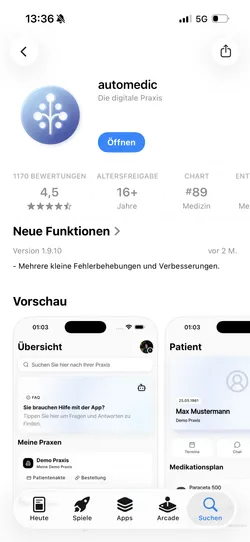

With Autodemic, you can reorder repeat prescriptions yourself, easily and at any time, regardless of our opening hours.
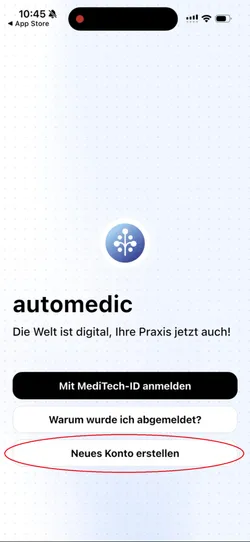
Open the app and sign in with your MediTech ID. If you don't have a MediTech ID yet, create one first by entering your first name, last name, and email address, then choosing a password. It's recommended to save your password in a password manager so you don't lose it.
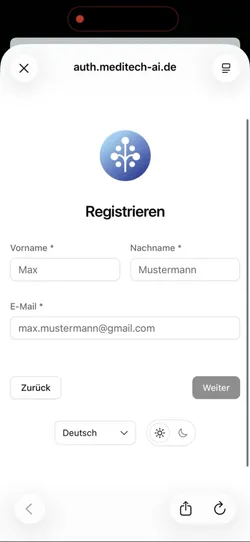
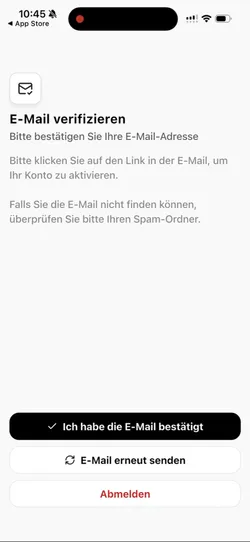
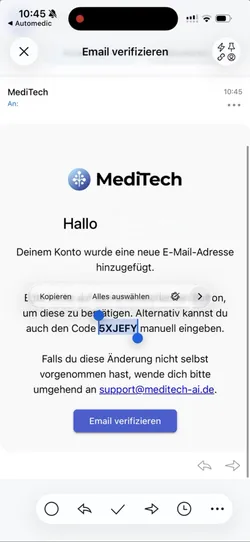
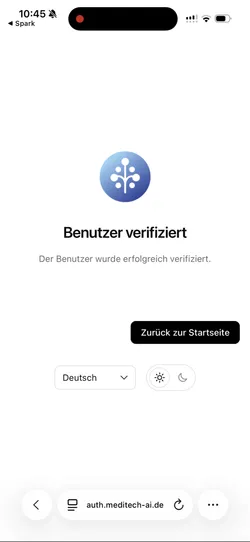
You'll receive an email asking you to confirm your email address. Either click the link in the email or enter the six-digit verification code in the app. Your account is now ready to use.
Before you can use the app, it must be linked to your patient record. This can only be done in person at the practice with assistance from the practice team. Bring your smartphone with the app already installed.
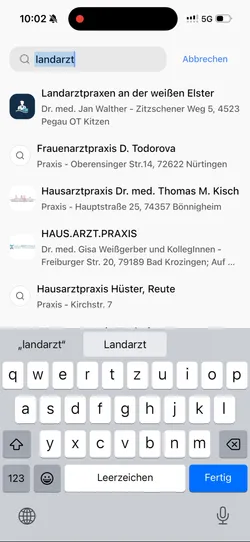
Open the app and sign in. On the home screen, use the search field labeled "Search for your practice". Enter the name of your practice, for example "Landarztpraxis an der Weißen Elster", and select it.
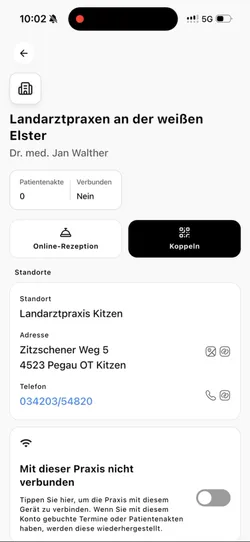
Tap the "Link" button. A QR code scanner will open. At the same time, the practice team opens your patient record and selects "Link Automatic". A PDF containing a QR code and a five-digit code will be displayed.
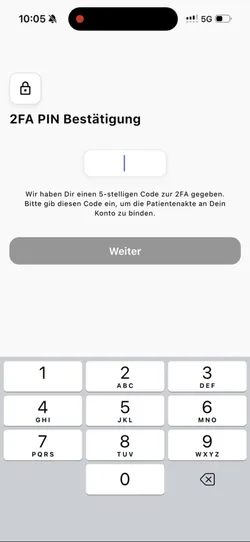
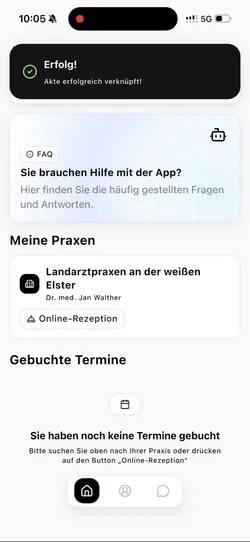
Scan the QR code with your smartphone or enter the five-digit code manually instead. Your patient record is now linked to the Automatic app. From now on, you can view your prescriptions there, including prescriptions for ongoing medication.